
How to Remap Any Keyboard Shortcut with a Double-Tap on macOS (2026 Guide)
February 15, 2026
Tired of finger-breaking, conflicting keyboard shortcuts on your Mac?
In 2026, there’s finally a dead-simple fix: double-tap one modifier key to trigger any action you want.
That’s Double Tap — a tiny free app I built because every other solution was either too complicated, broke Spotlight, or required a PhD to configure.
- Double-tap Cmd → Save All
- Double-tap Option → Open new Terminal tab
- Double-tap Shift → Start screen recording
One finger. No conflicts. Works instantly. 100% free.
Download Double Tap – Completely Free
Why Double Tap Is the Only Shortcut Tool Most Mac Users Will Ever Need
| Solution | Learning Curve | Conflicts with macOS? | Setup Time | Best For |
|---|---|---|---|---|
| System Settings | Medium | Yes, often | 5–10 min | Very basic changes |
| Karabiner-Elements | Extremely steep | Sometimes | Hours | Power users only |
| BetterTouchTool | Steep | Yes | 30+ min | Gestures + advanced remapping |
| Double Tap | None | Never | Under 2 min | Everyone else (you) |
No JSON. No rules. No “why is Cmd+Q not quitting anymore?”
Just double-tap a key → magic happens.
How to Set Up Your First Double-Tap in Under 2 Minutes
1. Install Double Tap
Click the link above → installs in seconds → tiny icon appears in your menu bar.
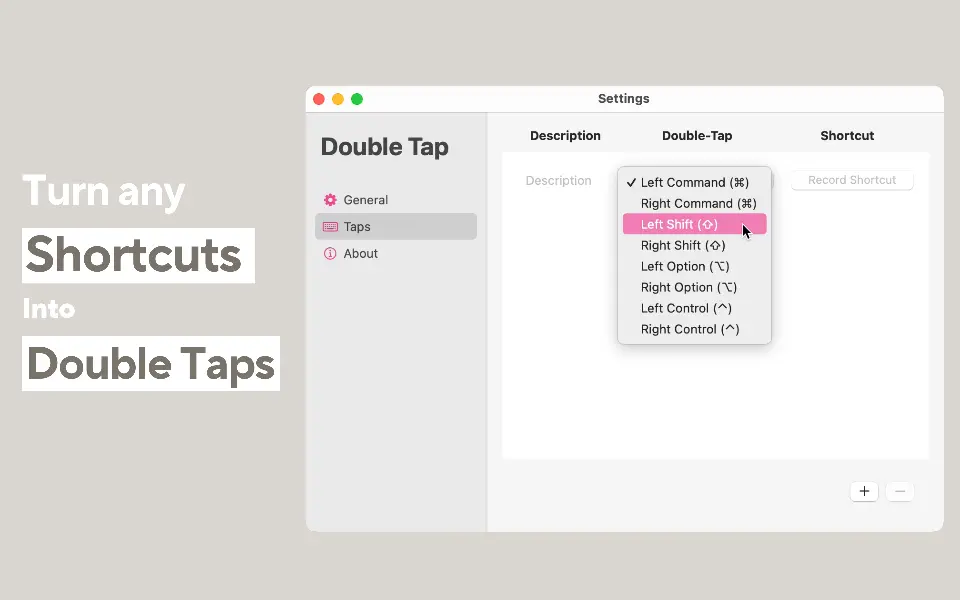
2. Choose Your Trigger
Select Cmd • Option • Shift • Control — whichever feels most natural.
3. Assign the Action
- Tap +
- Type or record the shortcut you want to trigger
- Save → it works immediately, everywhere
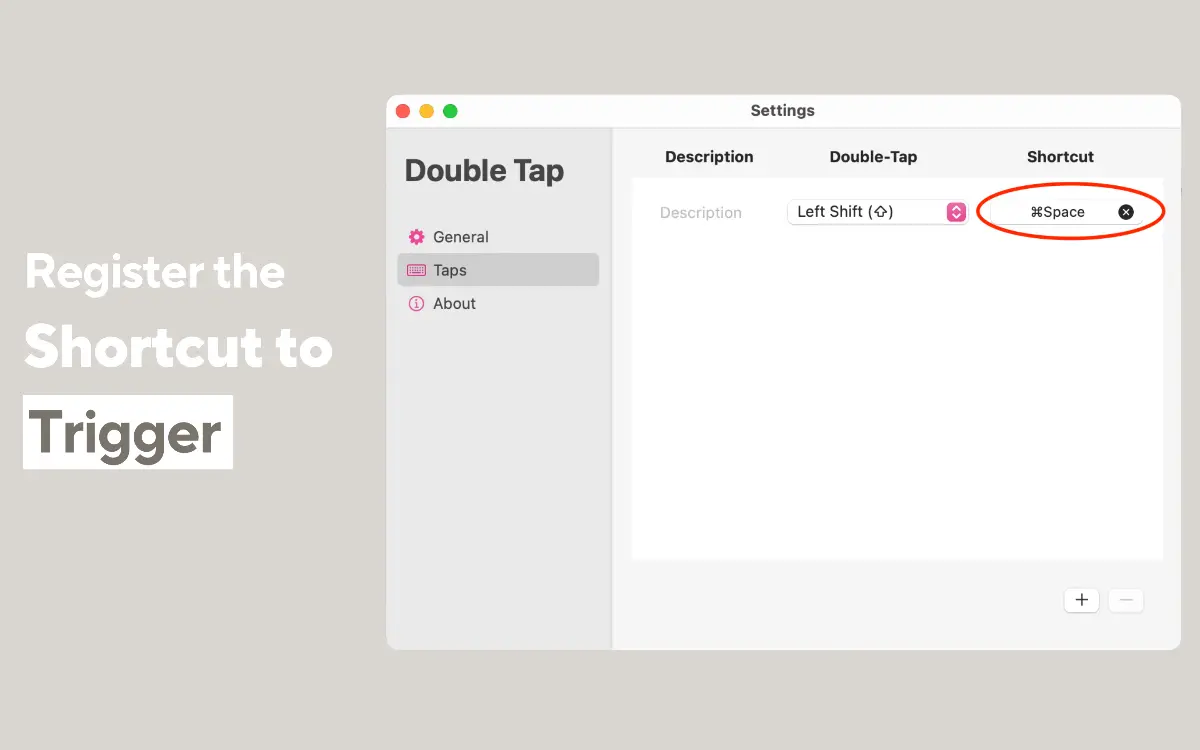
That’s it. No restart. No extra permissions beyond standard Accessibility.
Real-World Double-Taps People Use Daily
- Double-tap Cmd → “Save All” in any editor
- Double-tap Shift → Cmd+Shift+5 (screenshot menu)
- Double-tap Control → Toggle Do Not Disturb
- Double-tap Option → New browser tab with DevTools open
All with one finger. No stretching. No drama.
Common Questions Answered
- Not working? → System Settings → Privacy & Security → Input Monitoring → allow Double Tap
- Double-tap too fast/slow? → Adjust the timeout slider in the app (one setting)
- Privacy? → 100% local, no internet, no analytics, no data collection
Ready to Make macOS Shortcuts Actually Usable?
Download Double Tap – 100% Free
You’ll replace your five most awkward shortcuts before lunch.
Drop your favorite double-tap combo in the comments — I read every single one.
P.S. Share this with one Mac friend who still does finger yoga for Cmd+Option+Shift+whatever. They’ll owe you coffee forever.