Top 10 Mac Apps to Boost Your Productivity in 2026
January 15, 2026
1. Mini Stopwatch: Precision Timing in Your Menu Bar
Mini Stopwatch is a lightweight, no-fuss stopwatch that lives in your menu bar. Start, stop, or reset with a click — or even quicker with custom keyboard shortcuts. It’s perfect for timing focus sessions, quick sprints, or breaks. You can copy the final time to your clipboard, switch to full-screen for visibility, and even personalize the appearance. It’s a tiny app that keeps you on track without breaking your flow.
2. iBar: A Smarter, More Flexible Menu Bar
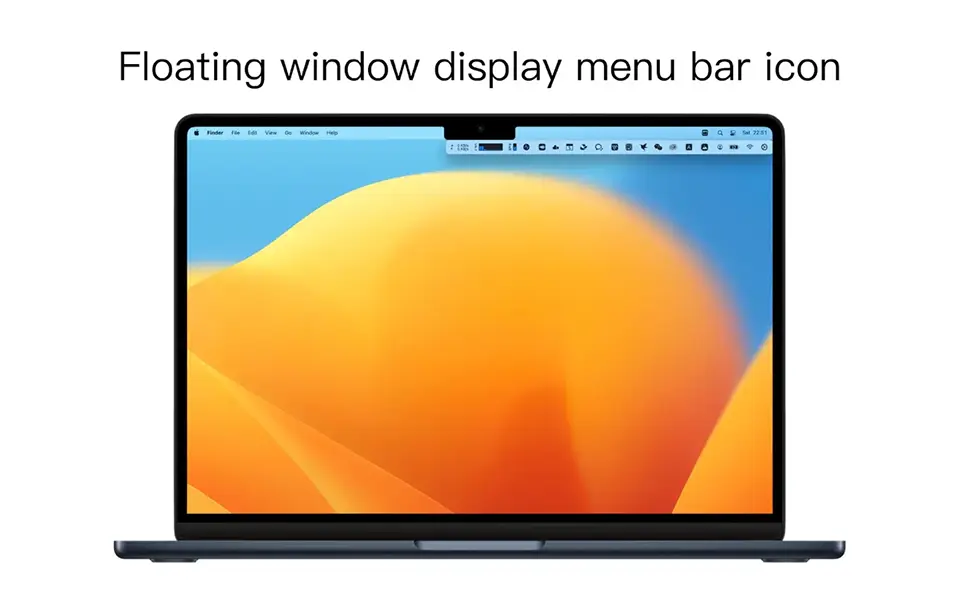
iBar is the modern replacement for Hidden Bar. It lets you declutter your menu bar with more control, smoother animations, and better customization. You can hide entire groups of icons, reorder everything exactly how you like it, and even choose how icons collapse around the notch. If you care about a clean, distraction-free workspace, iBar is the new standard.
3. RapidSnap: Lightning-Fast Screenshots With Style
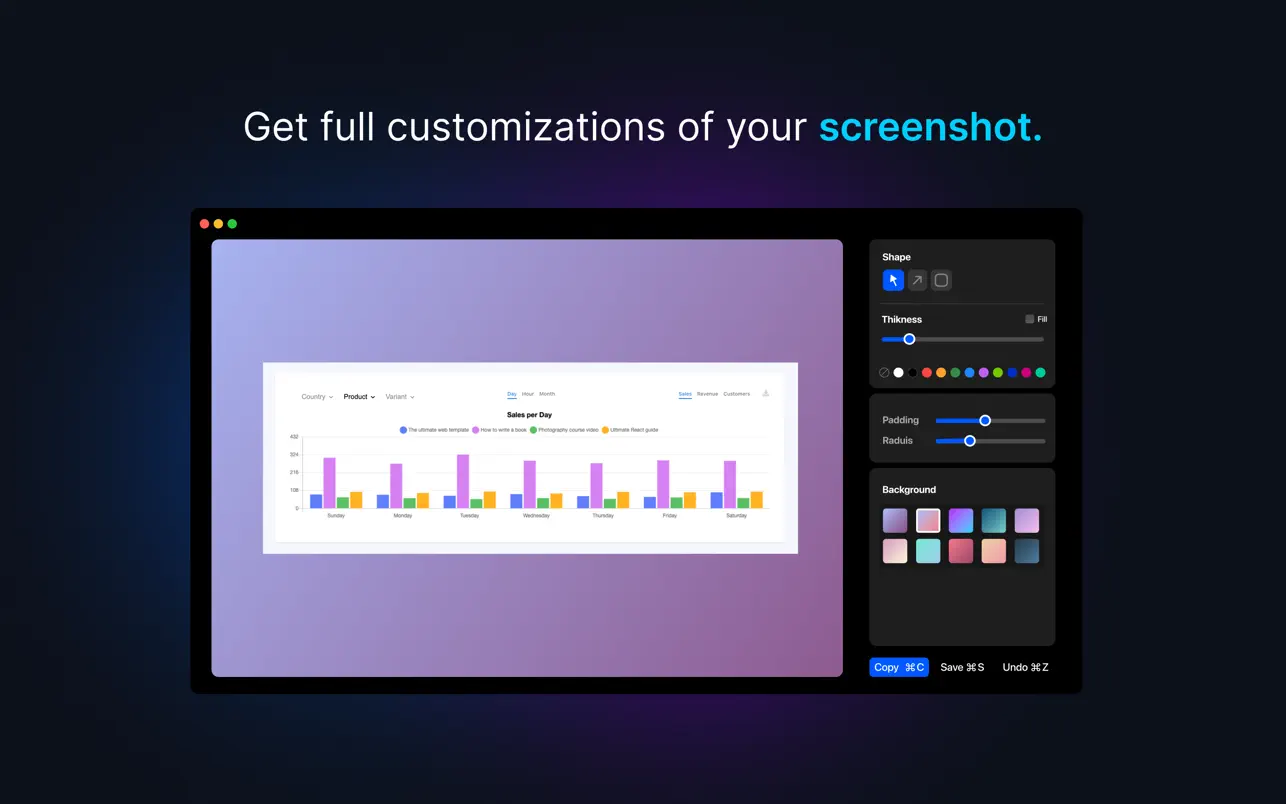
RapidSnap replaces My Clocks this year with a completely different focus: fast, clean, beautifully framed screenshots. Press a shortcut, capture instantly, add highlights or frames, and share in seconds. If you work with content, report bugs, send visual instructions, or post on social media, RapidSnap becomes one of those “why didn’t macOS ship with this?” apps.
4. Rectangle: Effortless Window Management
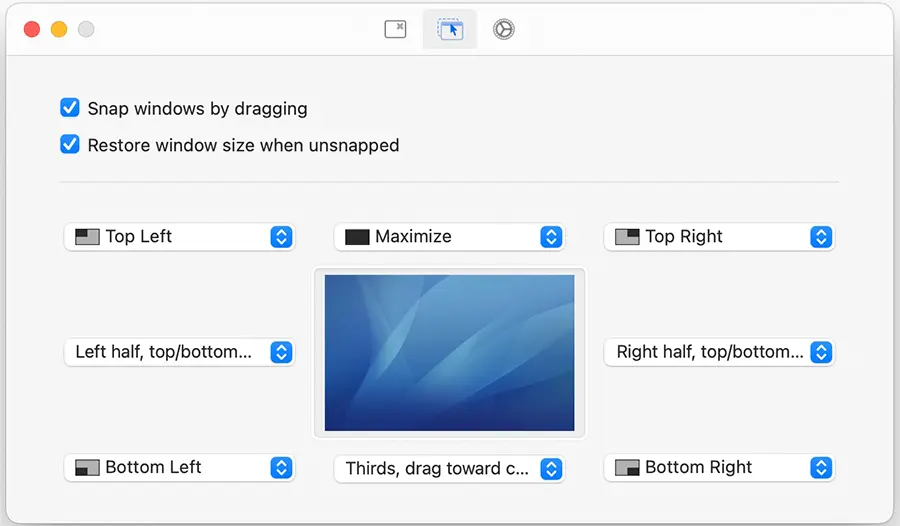
Rectangle makes multitasking smoother and more efficient. With keyboard shortcuts or snap zones, you can instantly arrange windows side-by-side, fullscreen, centered, or distributed across multiple monitors. It's clean, fast, reliable — and free.
5. Claude: The AI That Actually Saves You Hours
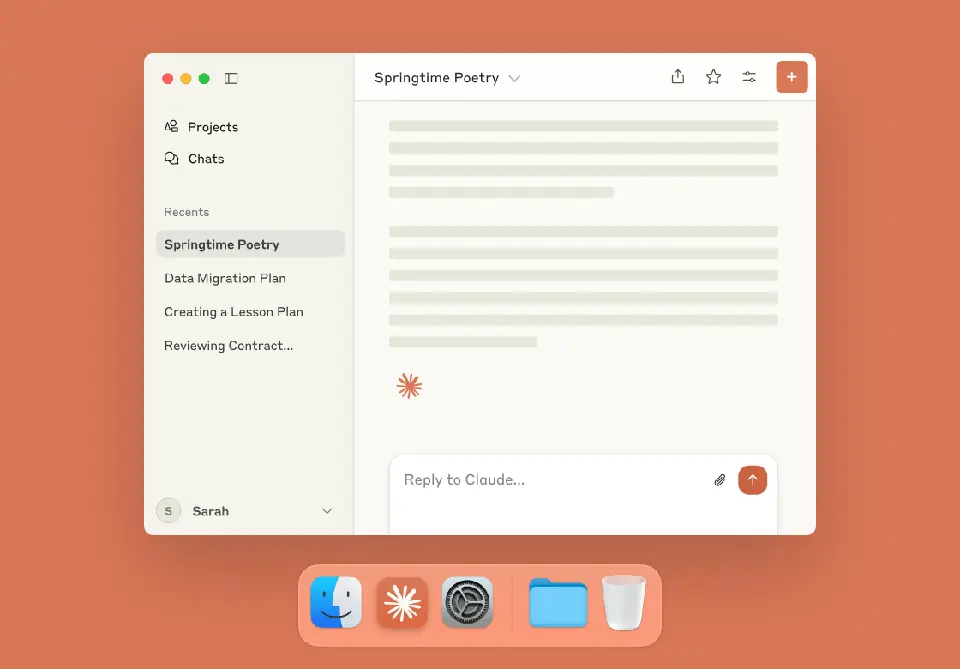
Replacing Charmstone, Claude brings a completely different kind of productivity boost. Sure, clever utilities save you seconds — but Claude saves you hours. You can summarize documents, rewrite text, generate ideas, analyze screenshots, plan projects, and even get code explanations instantly. It integrates cleanly on macOS, works beautifully with pasteboard and screenshots, and becomes the tool you open when you're stuck, rushed, or overwhelmed. It’s the ultimate multiplier for anyone doing knowledge work.
6. Dropover: Temporary Shelf for Drag & Drop
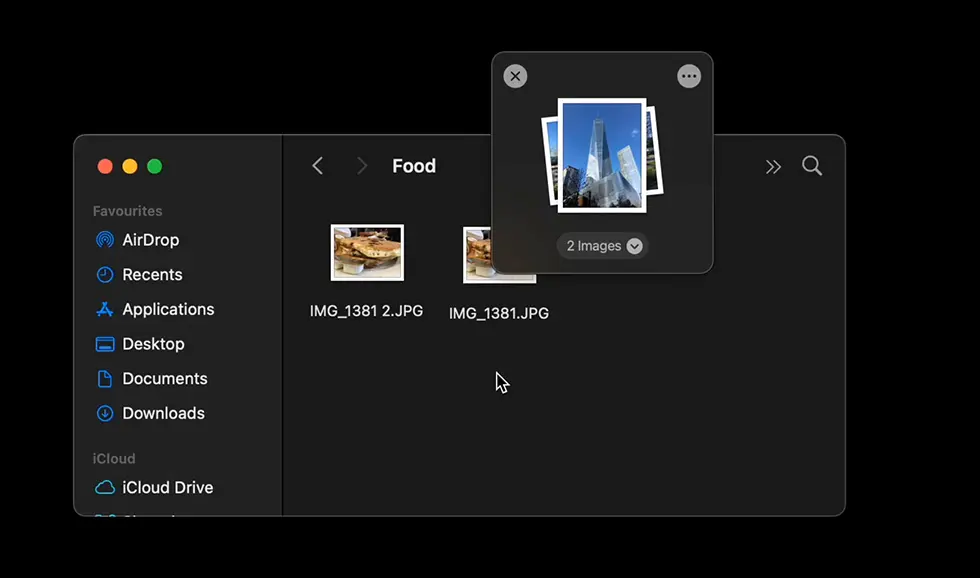
Dragging files between windows can be annoying. Dropover fixes that with a little shelf that appears when you start dragging something. Drop your files there temporarily, switch apps, then drop them into place. It's simple, intuitive, and incredibly useful if you move files around often.
7. TextSniper: Instantly Grab Text From Anything
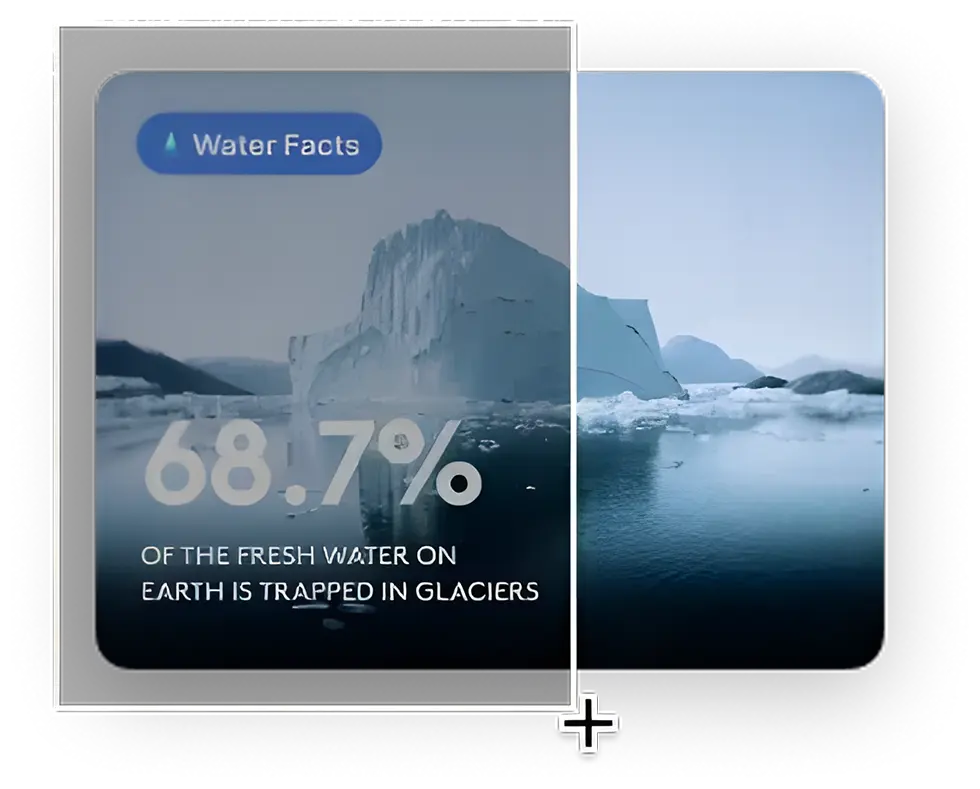
TextSniper lets you copy text from images, videos, PDFs, or anything you see on screen. Just use a shortcut, select an area, and boom — the text is extracted. Perfect for developers, researchers, students, or anyone who constantly screenshots snippets of information.
8. Stretch it: Micro Breaks Done Right
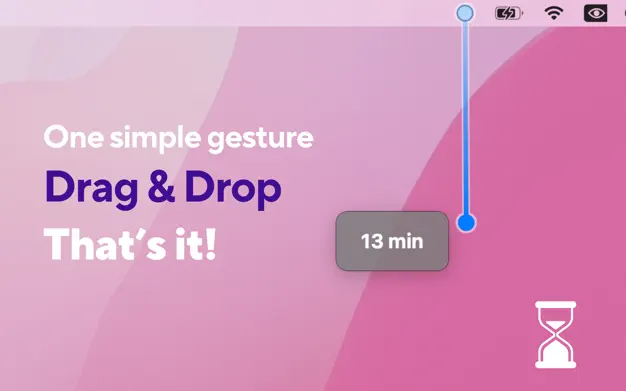
Stretch It makes starting a focus session feel playful and instant. Drag and release the timer like stretching an elastic — it’s tactile and oddly satisfying. No menus, no setup. Just pull, release, and focus. Perfect for avoiding burnout and keeping momentum throughout the day.
9. Double Tap: Custom Shortcuts, Doubled
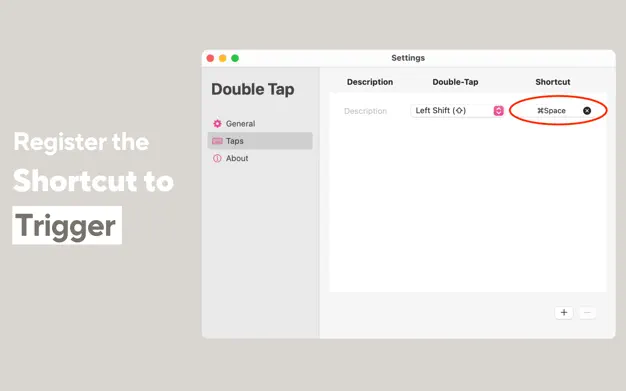
Double Tap lets you map keyboard shortcuts to a double-tap of modifier keys — like tapping Shift twice to trigger an action. It’s a smart way to launch apps, paste text, take screenshots, or run workflows without adding more shortcuts to your brain.
10. Alfred: A Smarter Spotlight
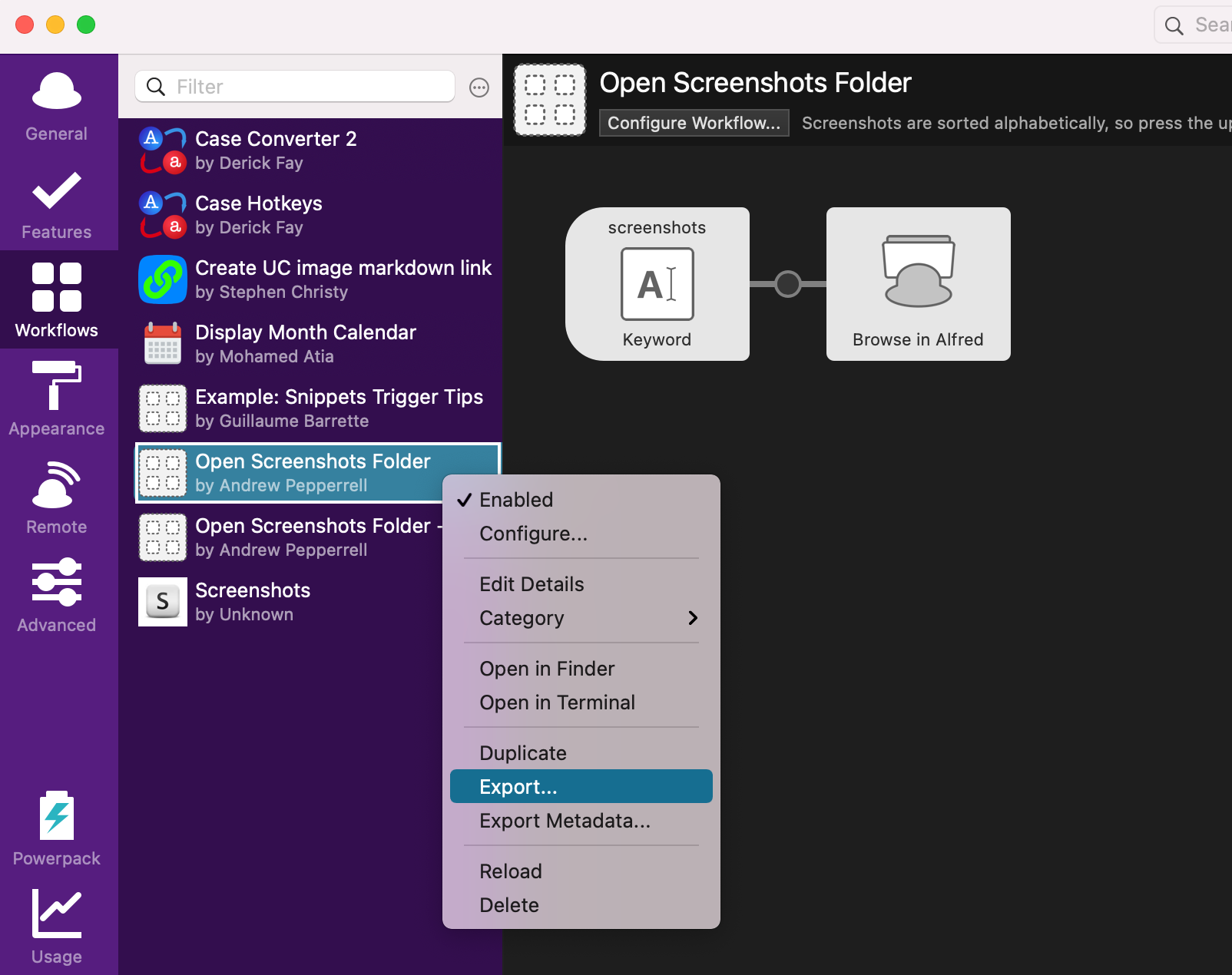
Alfred remains one of the most powerful search and automation tools on macOS. Launch apps, search the web, trigger workflows, manage clipboard history, and control your system without lifting your hands from the keyboard. It’s endlessly customizable and hard to live without once you start using it.