10 Apps to Install When Getting a New Mac in 2026
December 15, 2025
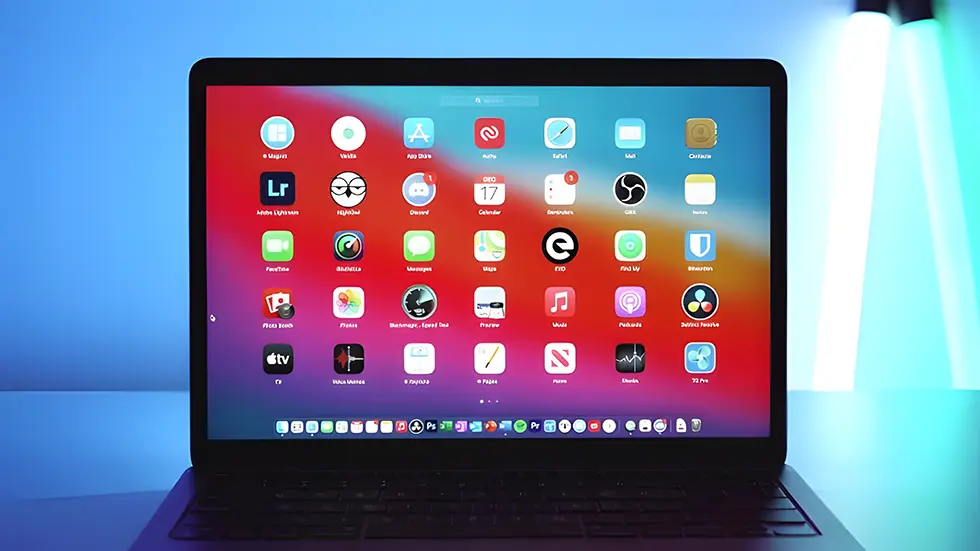
Setting up a new Mac is exciting—but it gets even better when you install the right tools from day one. Whether you're aiming for focus, speed, customization, or just decluttering your workspace, this list has you covered. These ten apps are must-installs for anyone who wants their Mac experience to be smooth, powerful, and delightful.
1. Skitch: Fast and Clear Image Markup
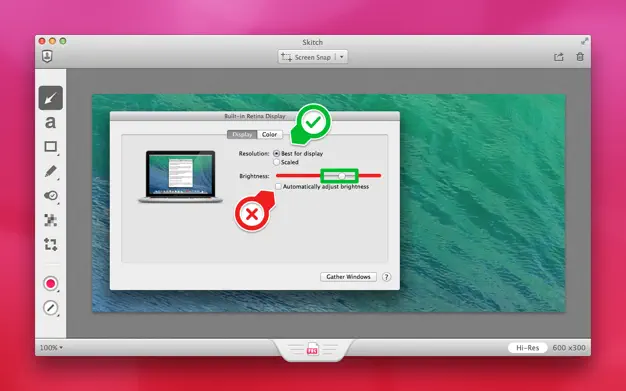
Skitch makes it ridiculously easy to annotate screenshots. Whether you're pointing something out to a colleague, highlighting a bug, or just organizing ideas visually, Skitch delivers fast. Its clean interface and quick-access tools make it far more efficient than using Preview or bulky editors. For anyone who regularly shares feedback, designs, or documentation, Skitch is a no-brainer.

2. Alfred: Supercharged Search and Shortcuts
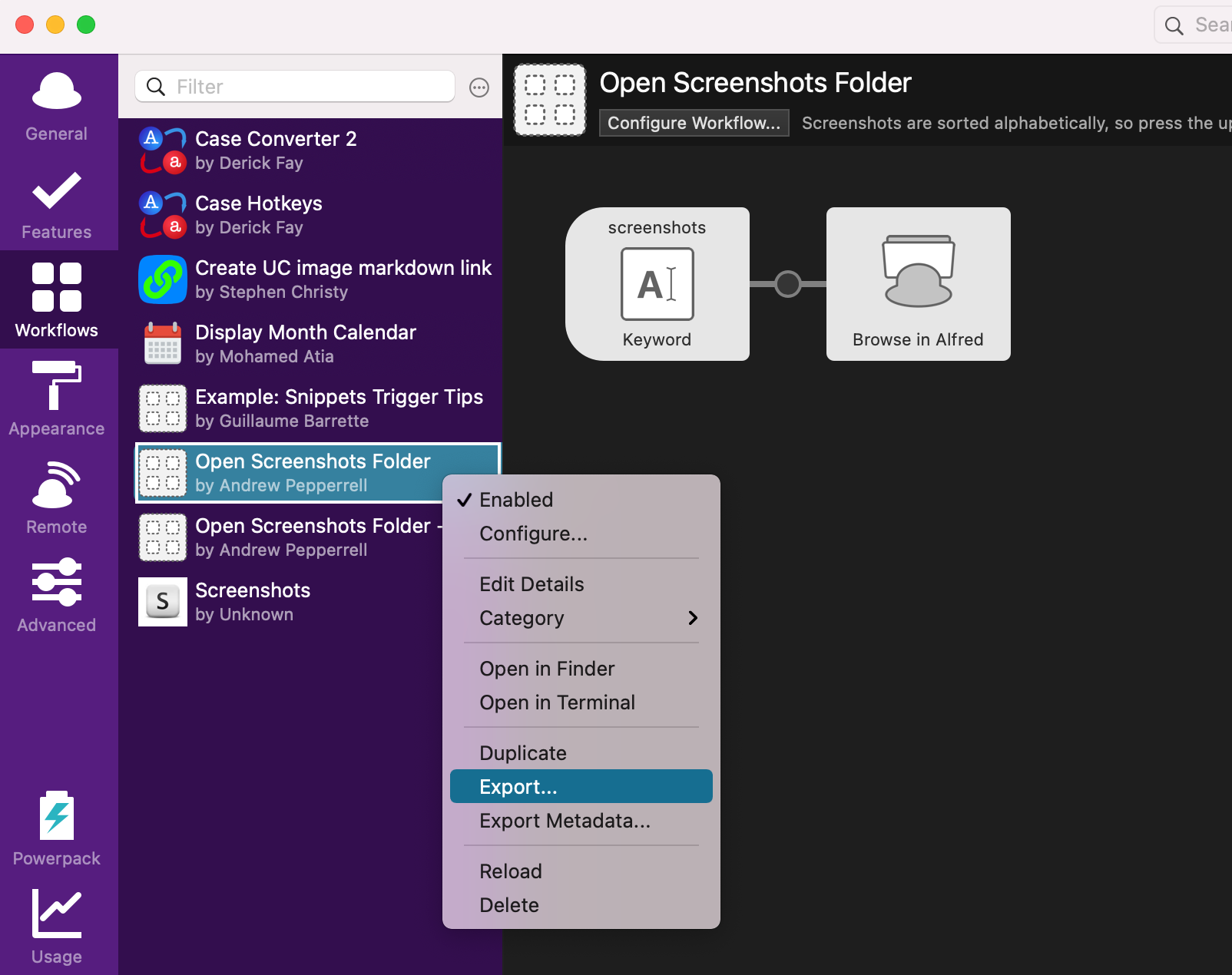
Alfred turns your Mac into a command center. Replace Spotlight with a faster, more customizable launcher that can search files, run scripts, define words, perform calculations, and more. The best part? Its workflows. Once you set them up, you can trigger complex chains of actions with just a few keystrokes. It's a major productivity boost and feels like a true power-up for your daily tasks.

3. TextSniper: Instantly Grab Text from Anything
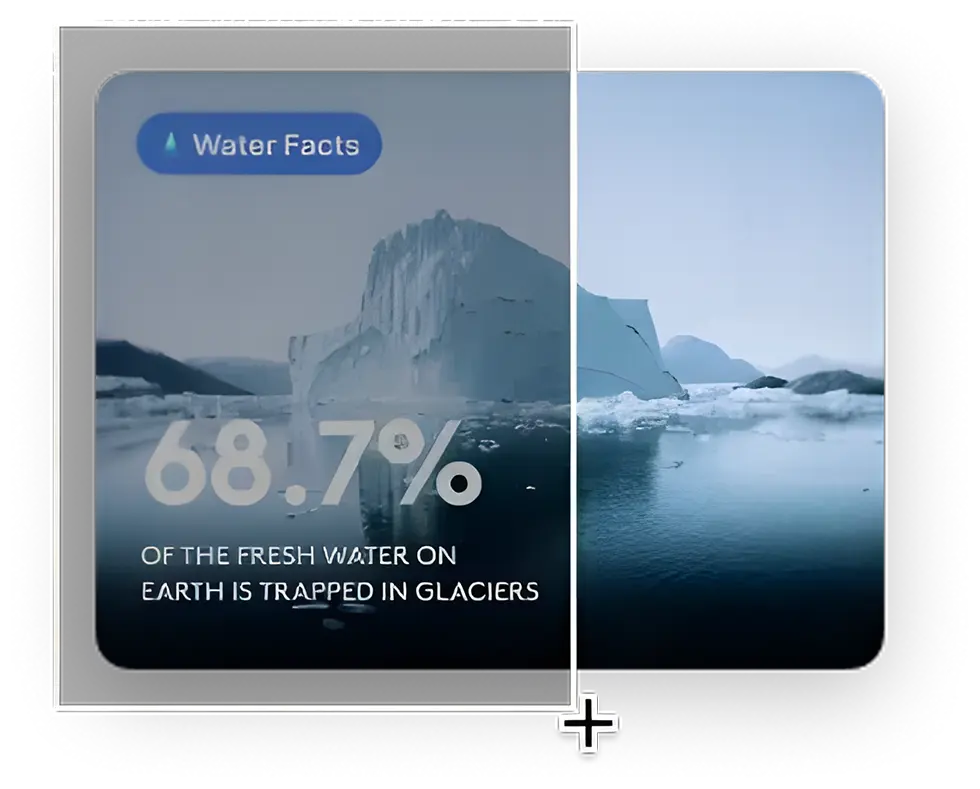
TextSniper is your secret weapon for pulling text out of images, videos, or PDFs. You just draw a box around the text, and boom—it's in your clipboard, ready to paste. It's fast, accurate, and a lifesaver when dealing with non-selectable content. If you're tired of retyping text from screenshots or locked documents, this is the solution.
4. Stretch It: Drag-to-Set Focus Timers
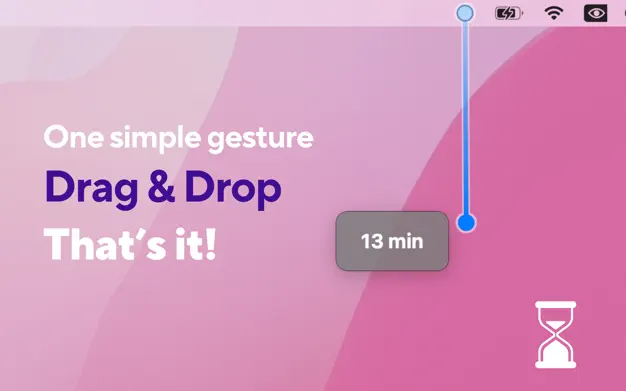
Stretch It offers a fun, gesture-based way to launch focus sessions. You drag to “stretch” the time and release to start—like setting a slingshot for productivity. It’s perfect for Pomodoro-style work blocks or micro-breaks. The interface is playful but the effect is serious: it helps you focus fast, without fiddling with menus or typing durations.
5. Mini Stopwatch: Minimal Timer in Your Menu Bar
Mini Stopwatch is exactly what it sounds like: a clean, no-frills stopwatch that lives in your menu bar. One click to start or stop, double-click to reset. Great for timing tasks, workouts, or anything else where you want lightweight precision without opening a full app. It’s out of your way until you need it—and ready in a flash when you do.
6. Hide My Bar: Auto-Hide Menu Bar Clutter
Hide My Bar helps you clean up your menu bar by auto-hiding less important icons. If you're tired of seeing 20+ tiny app icons cluttering the top of your screen, this app gives you control and clarity. You decide which icons stay visible and which get tucked away. It’s a small tweak that makes a big difference in focus and aesthetics.
7. Rectangle: Easy Window Management
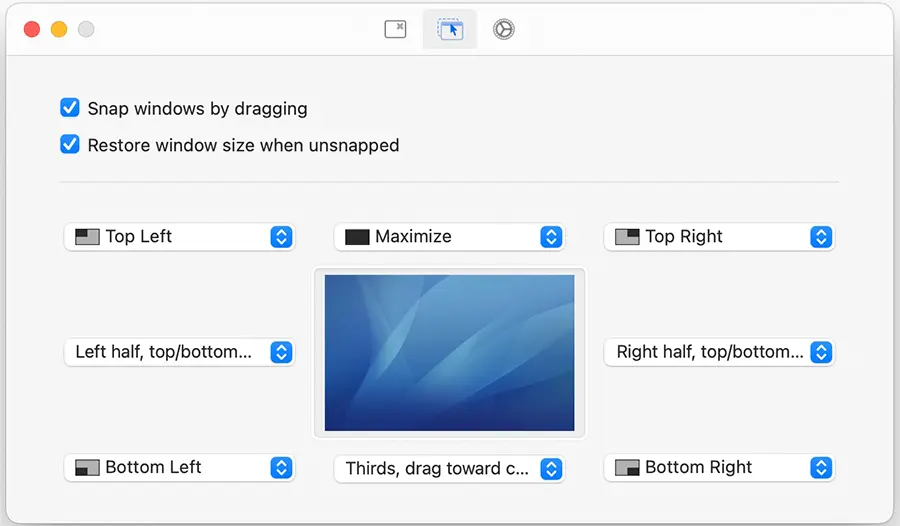
Rectangle lets you quickly snap windows into position using keyboard shortcuts. Want an app on the left half of your screen? Hit a hotkey and you're done. No more dragging and resizing by hand. It’s essential for multitasking, especially if you work with multiple monitors or love having side-by-side windows.
8. HiddenBar: Clean Up Your Menu Bar
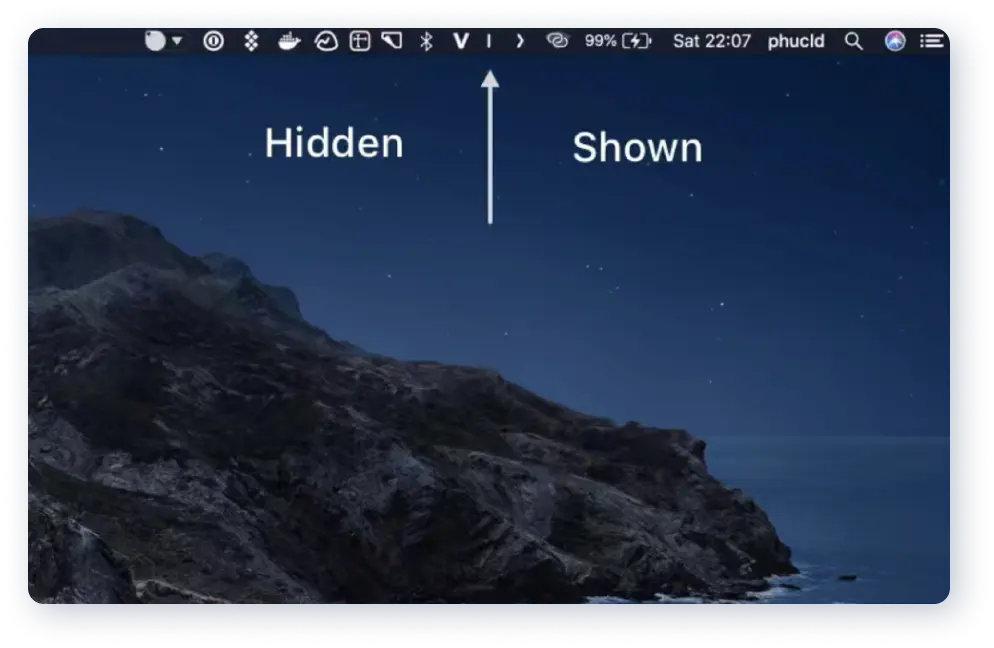
HiddenBar is a super lightweight app that lets you hide menu bar items behind a divider. It's perfect if you don't need full automation like "Hide My Bar" but still want a cleaner look. With one click, you can toggle visibility and reduce distraction. It’s simple, elegant, and surprisingly useful if you care about visual focus.

9. Obsidian: Link Your Thinking
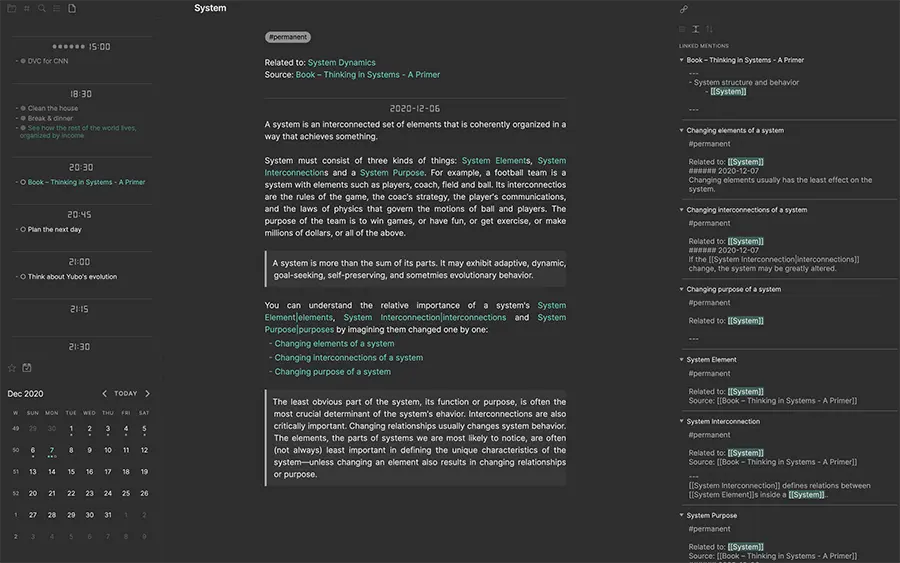
Obsidian transforms your note-taking into a network of ideas. You write in Markdown, and it automatically creates links between related notes, building a personal knowledge graph over time. It’s perfect for research, learning, journaling, and even planning projects. Best of all, it works offline and stores everything locally. It’s your second brain—on your Mac.
10. Charmstone: Effortless App Launcher
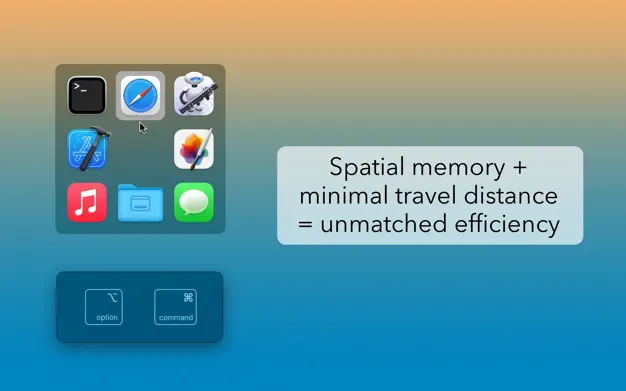
Charmstone is an elegant app launcher that lives under your cursor. With one swift gesture, you can access your favorite tools without leaving your current window. It’s great for reducing context-switching and feels incredibly fluid once you’re used to it. Whether you’re juggling design tools, dev environments, or messaging apps, Charmstone keeps them just a flick away.