
The Best 3 Solutions to Fix Macbook Pro Touch Bar flickering issues
June 28, 2024
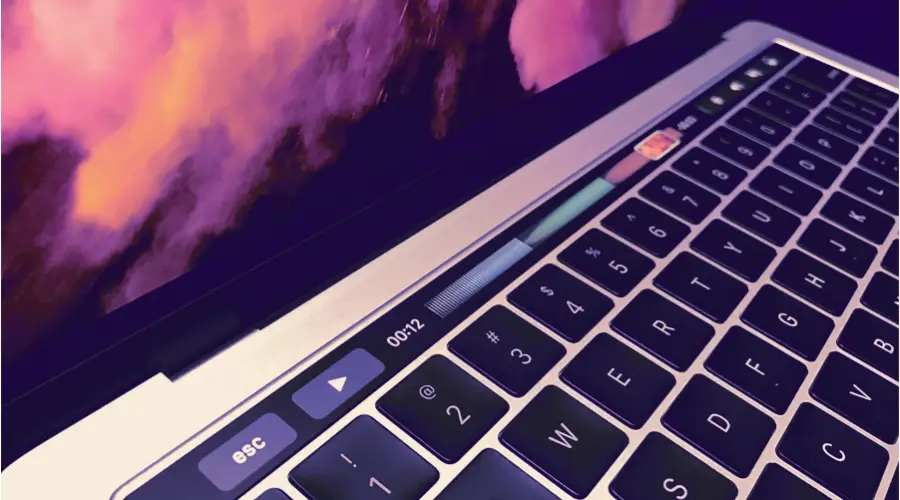
Many users have encountered Touch Bar flickering or blinking issues over different macOS updates but also over time as the hardware might be less reliable. I know, super frustrating considering the price of these Macbooks! These issues can be due to software problems (often caused by upgrading to a new macOS version) or hardware failures. Apple suggests replacing your Mac when the Touch Bar is flickering due to hardware issues or upgrading to a newer macOS version when it’s a software problem. However, upgrading isn’t always an option for everyone due to compatibility issues with other apps.
So, I’ll present here the best 3 solutions to help you overcome this issue.
1. Restart the Touch Bar Server
This is only a temporary solution, but it will help determine whether the problem is hardware or software
The Touch Bar Server is a system service that manages the Touch Bar’s functionality. Restarting it can resolve temporary software glitches that cause flickering.
To restart the Touch Bar Server, open the Terminal application and enter the following command:
sudo pkill TouchBarServer; sudo killall ControlStrip; pkill “Touch Bar agent”If prompted, enter your user password and press Enter.

(Alternatively, you can open the Activity Monitor, look for those 3 services (Touch Bar Agent, Control Strip and TouchBarServer, and stop them)
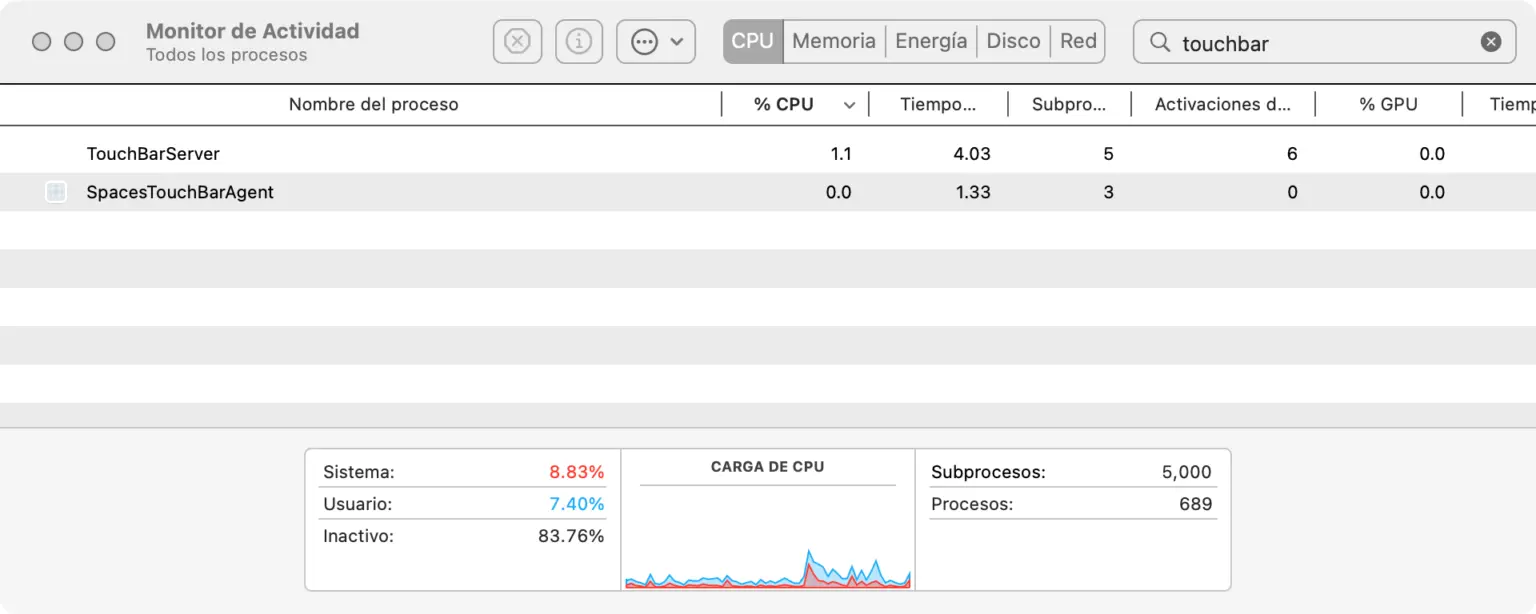
If the flickering stops, it is likely a software issue. If it continues, it may be a hardware problem.
Ok, forget about the temporary solutions and let’s check the best long-term solutions: one is completely free and the other is premium.
2. Change the Configuration of Your Touch Bar
- Go to System Settings > Keyboard
- Select Touch Bar Typing (on macOS 13 and above only)
- For the option “Touch Bar shows,” select “Expanded Control Strip.”
- Then click on “Customize Control Strip.”
- Move your cursor below the limit of your screen to interact with the Touch Bar items. Even if you can’t see the items well due to the flickering, they are automatically selected.
- Drag each item up to remove them from the Touch Bar, one by one. It’s kinda fun to do isn’t it?
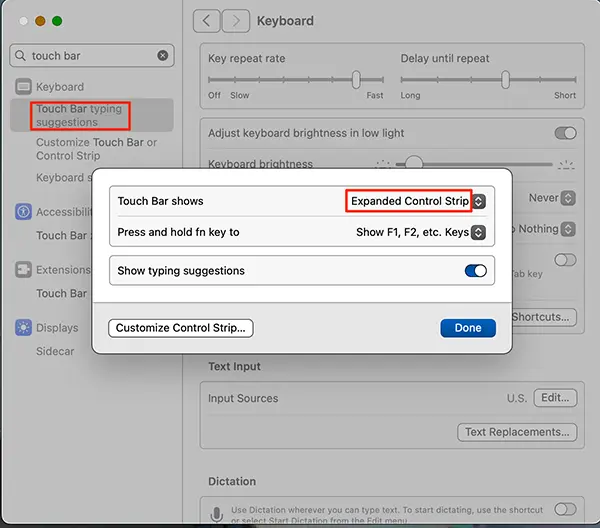

Now that the Touch Bar is empty, the flickering should stop. The downside of this approach is that the Touch Bar is no longer functional and you can’t quickly turn it back on. But hey, it’s free and it works!
3. Use Hide My Bar to turn off and stop the Touch Bar
Hide My Bar is an app that will allow you to turn off and stop the Touch Bar with the press of a shortcut. The big advantage here is that if you need to press your virtual escape key or a quick action, you can turn it back on in an instant.
The app is free for 10 days, no credit card required, so you can confirm it fixes your issue before paying anything. The full version is $4.99, one time.
Why people reach for this instead of a repair
The reason this option exists at all is the price of the alternative. Apple doesn't replace the Touch Bar on its own — the entire top case goes with it. Users consistently report quotes in the $350 to $500 range for what is, functionally, a strip of glass they never asked for.
One user put it plainly after trying it:
"My Touch Bar started flickering out of nowhere — full-on strobe light mode. I checked with Apple, and the repair would cost something like $500 because they have to replace the whole top case. For a flickering strip. Then I found this app, ran it, and the Touch Bar just disappeared. I didn't even realize how little I actually used the Touch Bar until it was gone." — ankitranga2, MacUpdate
What it does and doesn't do
Worth being precise, because this matters:
- It doesn't repair anything. The hardware fault is still there. What changes is that the strip is off, so there is nothing to flicker.
- The Escape key and Touch ID keep working. You lose the on-screen strip, not the physical buttons.
- You can turn it back on instantly with a shortcut, which is the advantage over emptying the Touch Bar as in solution 2.
- It needs macOS 10.14 or later. If you're on something older — and a lot of affected MacBooks are — this won't work for you, and solution 2 is your option.
It also isn't a guaranteed fix for every case. Some users report that the flickering persists at the edges of the strip, usually where the hardware fault is physical rather than in the display itself. The trial exists precisely so you can find that out for free.
Which One Should You Try First?
| Your situation | Start with |
|---|---|
| Flickering started after a macOS update | Solution 1 — restart the Touch Bar server. Costs nothing, often enough. |
| You're on macOS 10.13 or older | Solution 2 — emptying the Touch Bar is your only free option. |
| It keeps coming back and you want it gone for good | Solution 3 — Hide My Bar, with the shortcut to bring it back when you need it. |
| Apple quoted you for a top case replacement | Try all three before paying $350–$500 for a strip you probably don't use. |
Apple has occasionally missed the mark with its innovations, and the MacBook Pro Touch Bar is a prime example. Like the infamous butterfly keyboard, this feature failed to win over users. Ultimately, the underwhelming feedback led Apple to abandon the Touch Bar in 2021, reverting to traditional function keys on their premium MacBook Pro lineup.
Which leaves a lot of people with a machine that's otherwise fine and a strip of glass that won't stop blinking. All three solutions above are cheaper than replacing the Mac.